
Importing and exporting Contacts
Download your Contacts, or bring them in from a spreadsheet.
Downloading a spreadsheet
On Contacts, click Export CSV if you want a copy of your current list.
Bringing contacts in
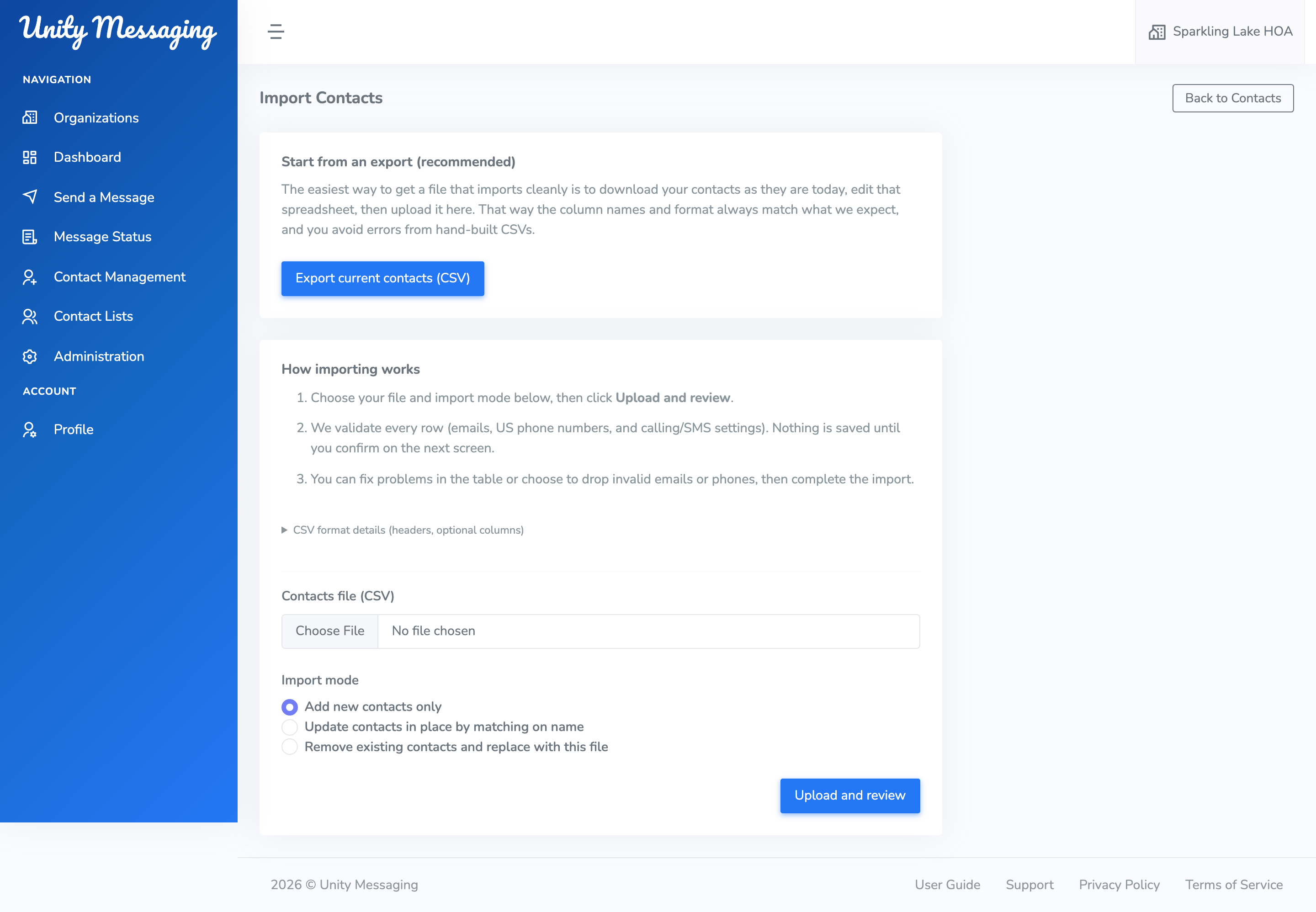
Click Import. If you already have a Unity Messaging export, that’s the easiest file to start from—there’s a button for Export current contacts (CSV).
Pick your Contacts file (CSV), then choose how to import:
- Add new contacts only
- Update contacts in place by matching on name
- Remove existing contacts and replace with this file
Review the preview, then click Complete import. Nothing is saved until you confirm.
What the spreadsheet should look like
The file needs First Name and Last Name. You can also include Email 1, Email 2, Phone 1, Phone 2, and yes/no columns for voice and SMS on each phone.
Save it as UTF-8. Phone numbers should be 10-digit US numbers.