
Adding and editing Contacts
Add someone new, or update a name, email, phone, or list.
Adding a New Contact
In Contact Management, click New Contact. Enter First Name and Last Name, plus at least one email or phone number. If they should get email, leave Subscribed checked. Click Save Contact.
Need a second email or phone? Click +.
Editing a Contact
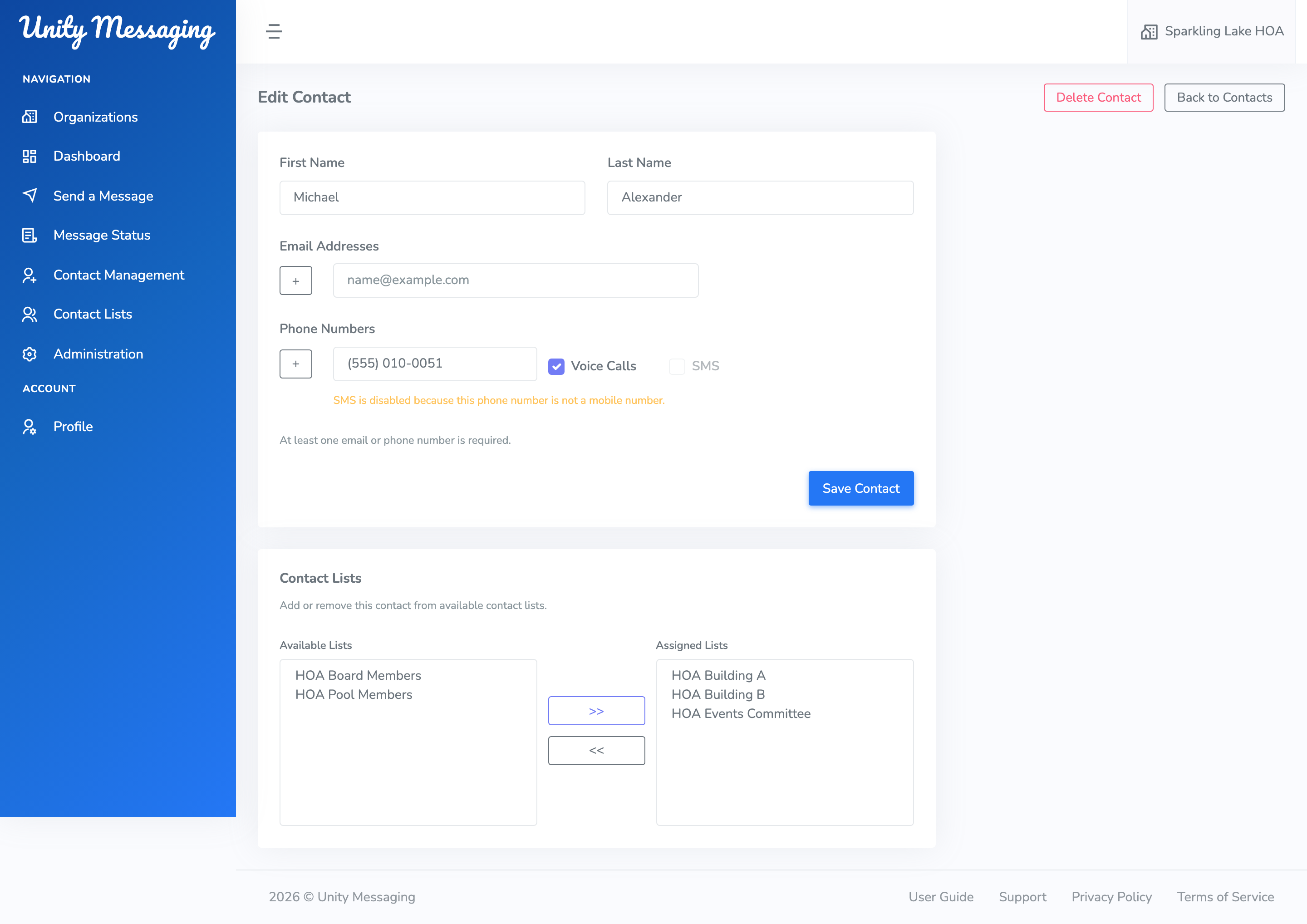
Click the pencil next to someone on the Contacts list. Change whatever you need, then click Save Contact.
After a phone number is saved, you can turn Voice Calls and Text Messages on or off for that number. You can also move lists between Available Lists and Assigned Lists with >> and <<.
A few things to know
At least one email or phone is required. Phone numbers are 10-digit US numbers. If you turn Subscribed back on after someone unsubscribed from email, you may see a warning.